
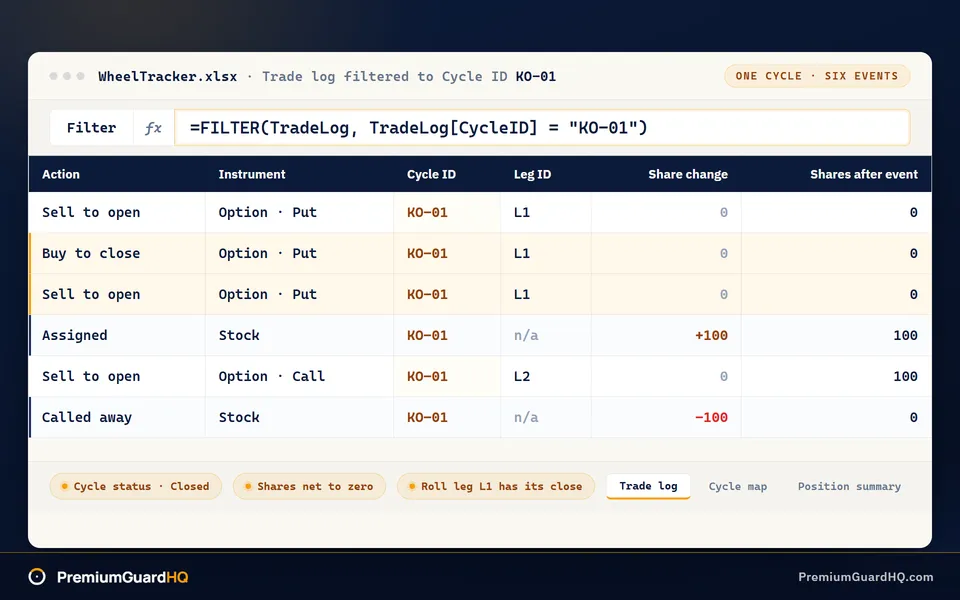
Your broker shows you fills, not full cycles. If you sell a put, take assignment on the stock, sell a call, and then get called away, the broker screen treats that sequence as four separate trades. It never shows the complete round trip.
Wheel traders fool themselves in that gap. A wheel strategy spreadsheet closes it by tying every trade into one cycle.
Put the problem plainly. Your premium column can look great each week. Then a single bad assignment arrives, or you roll a position several times in a row. Those costs slowly eat your gains, and you never see it because the broker does not connect the trades for you.
This guide builds a trade log that links every cash-secured put, roll, assignment, and covered call into one cycle. A cycle is the full round trip: you sell a put, possibly get assigned stock, sell calls against those shares, and eventually exit. When the build is done, each cycle gets one return-on-capital number, and you can trace that number back to real trades instead of working from memory.
Build the spreadsheet once. Upkeep after that takes a few minutes each week or month.
This guide covers only the spreadsheet build. For the trading rules behind the wheel itself, see the separate wheel strategy guide.
Start with the prep work below. Consistent columns and IDs are what make the rest of the build work.
Before you start: pick your tool and define a trade event
Get these items ready before you open a spreadsheet.
Pick your platform. Google Sheets is free and simple to share. Excel includes Power Query, which imports and cleans large data batches. Choose Excel when you trade often and need to bring in big chunks of history.
Decide how trades go in. If you make a few trades a month, enter them by hand. If you trade often, export a CSV from your broker instead. A CSV is a plain spreadsheet file your broker can generate, and it leaves a record of fees, closed trades, and assignments. Assignment is when you are forced to buy or sell the stock tied to your option.
Set the golden rule now: one row equals one event, not one position. An event is any single thing that happens to a trade. These are examples of events:
- Selling a put to open
- Buying it back to close early
- Letting it expire
- Closing one leg of a roll, which moves a trade to a new date or price
- Opening the next leg of that roll
- Getting assigned stock
- Having your stock called away
- Collecting a dividend
Putting events and positions in the same row is the single most common reason trackers break later.
Build three empty tabs now: Trade log, Cycle map, and Position summary. The formulas later in this guide depend on those exact names.
Lock in your naming rules today and do not change them. Decide how you will write tickers, option type labels, action labels, and the Cycle ID format. That Cycle ID goes on every event in the same cycle, so it has to stay consistent from the first day.
Finish this checklist and step 1 will move quickly.
Step 1: Build the trade log columns that survive rolls and assignment
Open the Trade log tab you created in prep. Every trade event lives here. Add one row per event, exactly as planned.
Begin with three columns that label each row:
- Trade ID: a running number, such as 1, 2, 3.
- Ticker: the stock symbol, such as KO or SSRM.
- Account: which broker holds the trade. This matters when you trade across more than one broker.
Next, add columns that describe the trade itself:
- Instrument: Stock or Option.
- Option type: Put or Call.
- Expiration date.
- Strike: the price fixed in the contract.
- Contracts: the number of option contracts.
- Quantity: shares on a stock row, contracts on an option row.
Now add columns that record what happened and when:
- Action: Sell to open, Buy to close, Expired, Assigned, or Called away.
- Event date: when the event happened.
- Notes: why you opened the trade or what changed.
Next, add the cash flow columns. They let you calculate real profit later:
- Price: per share or per contract.
- Gross premium or proceeds: the raw dollar amount before fees.
- Fees and commissions.
- Net cash flow: gross amount minus fees. Use
=Gross - Fees.
Finally, add two columns specific to wheel trading:
- CSP collateral reserved: the cash your broker sets aside for a cash-secured put. A cash-secured put means you reserve enough money to buy the stock if you get assigned. Calculate it as
Strike * 100 * Contracts. - Shares after event: a running share count per ticker. You will finish wiring this up in a later step, after cycle linking is in place.
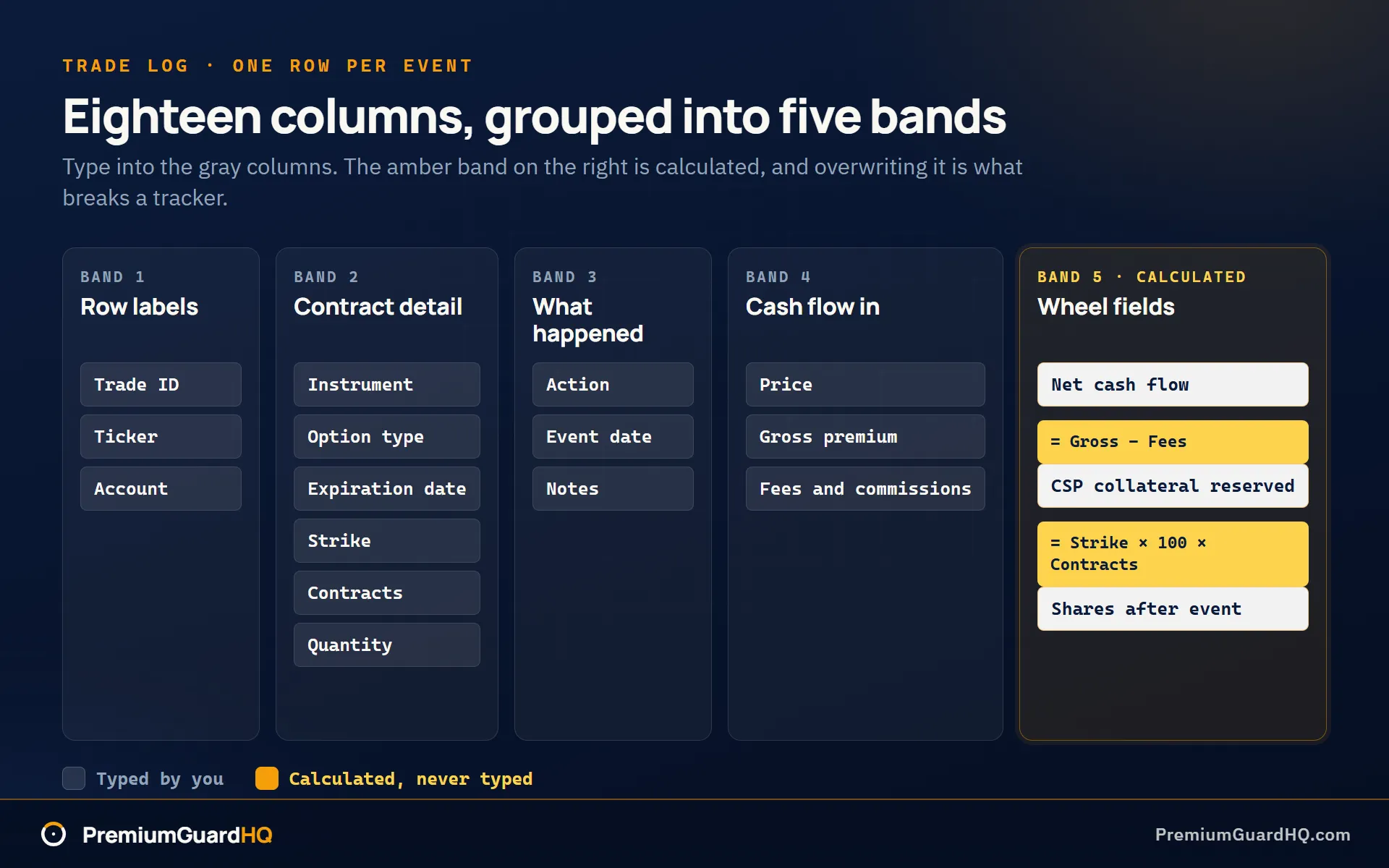
Keep raw inputs and calculated columns apart. Color the input columns gray and put every formula column to their right. That way you always know which cells you can type into and which ones you would break by overwriting.
At this point, the Trade log tab should accept any option or stock event as one row, with enough fields to calculate net cash flow and collateral for every cash-secured put.
Step 2: Link events into a single wheel cycle
Your Trade log can hold every event now, but nothing links a put sale to the assignment it caused or to the covered call sold after. That missing link is what breaks most homemade wheel strategy spreadsheets. A put sale is a promise to buy a stock at a set price. Assignment happens when that promise is triggered and you actually buy the shares. Close the gap with two simple ID fields rather than fragile formulas that try to guess what happened.
Open the Cycle map tab. It turns a messy pile of events into one clean sequence per cycle. A cycle is the full round trip. It starts the first time you sell a put on a ticker, and it ends when the stock is called away or you exit for good.
Build two ID fields
- Cycle ID: one per wheel cycle, per ticker. Every event from the first put sale through the final exit uses this same ID.
- Leg ID: groups the two sides of one roll. A roll is when you close an option and open a new one on a different date or strike. Both halves share one Leg ID, which lets you add up total money in and money out across the full sequence.
Here is the key rule. Do not let a formula guess when a new cycle starts. Guessing is how spreadsheets quietly break. Instead, enter Cycle ID by hand, chosen from a dropdown list.
To build that dropdown, keep a small table on the Cycle map tab with four columns: Cycle ID, Ticker, Cycle start date, and Cycle status. When you open a new cycle, add a row there first. Then return to the Trade log and tag each event for that ticker with the matching Cycle ID from the dropdown.
Tag each event type correctly
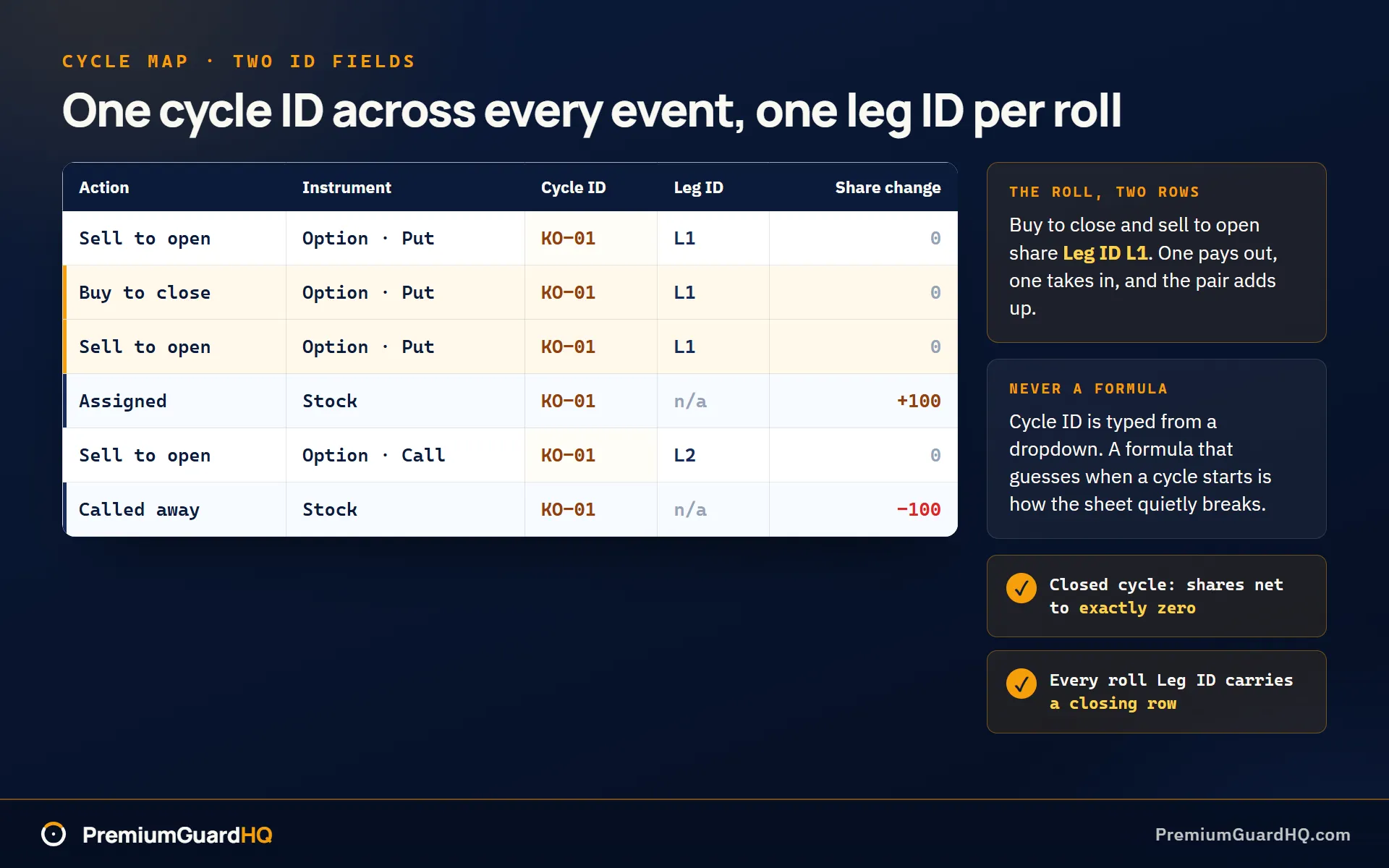
- A roll is two rows that share the same Cycle ID and Leg ID. The first row is a buy to close on the old option, so cash flow is negative because you paid money. The second row is a sell to open on the new option, so cash flow is positive because you received money.
- An assignment gets its own row. Set Action to Assigned, Instrument to Stock, and the share change to plus 100 per contract. If you have not seen what lands in your account the morning after assignment, that row is the one most people log wrong.
- A call away also gets its own row. Set Action to Called away, and the share change to minus 100 per contract.
Add two helper columns
These columns keep the math honest without extra thinking:
- Signed contract quantity: positive when you sell to open, negative when you buy to close.
- Signed share quantity: positive for an assignment, negative for a call away, and signed normally for any manual stock trade you enter.
Run two quick checks
Run these before you trust the data:
- For any Cycle ID marked closed, shares should net to exactly zero. If they do not, an event is missing or tagged wrong.
- For any Leg ID tied to a roll, you should find at least one closing row. A Leg ID with only an opening row means you forgot to log the close.
Now every row in the Trade log should carry a Cycle ID. Filter by one ticker and you can watch a single wheel cycle unfold from the first put sale to the final exit. Each roll, assignment, and call away is accounted for, and no payment or credit floats on its own.
Step 3: Calculate running cost basis
In this sheet, cost basis is the real price you paid per share for the shares you hold now, inside one Cycle ID. A Cycle ID is the label for one full trip through the wheel strategy, from the first put you sell to the day you no longer hold the stock.
This number does not match the one your broker shows. Brokers adjust that figure for wash sales and other rules you never requested. A wash sale is a tax rule that changes your reported cost when you sell a losing position and soon after buy something similar. In your sheet, basis drops only when you actually collect a premium and the cash lands in your account. Premium is the cash you collect for selling an option. Only count a credit after the cash is real.
Open the Position summary tab and add these fields for every Cycle ID:
- Assigned share count: shares you were assigned and still hold. Assignment happens when a put you sold is exercised, so you end up buying the stock.
- Assignment strike: the strike price from the put that got assigned. The strike price is the fixed price written into the option contract.
- Total put premium collected: all premium from puts sold before assignment, in dollars.
- Total call premium collected: all premium from calls sold after assignment, in dollars.
- Total fees allocated: every fee tied to this cycle, pulled from the Fees and commissions column in the Trade log.
Now calculate basis at the moment of assignment with this formula:
Basis per share at assignment = Assignment strike - Put premium per share receivedIf you store premium as a dollar total instead of a per-share amount, convert it first:
Put premium per share = Total put premium / (100 * Contracts)Your sheet should show this number first: basis at assignment. It exists only for cycles where an assignment actually happened. Leave the field blank for cycles still in the put-selling stage. There is no stock yet, so there is nothing to attach a basis to.
Next, update basis every time you sell a covered call against those shares. A covered call is a promise to sell your shares at a set price in exchange for collecting more premium. Each time call premium arrives, it lowers basis further:
New basis per share = Prior basis per share - Call premium per share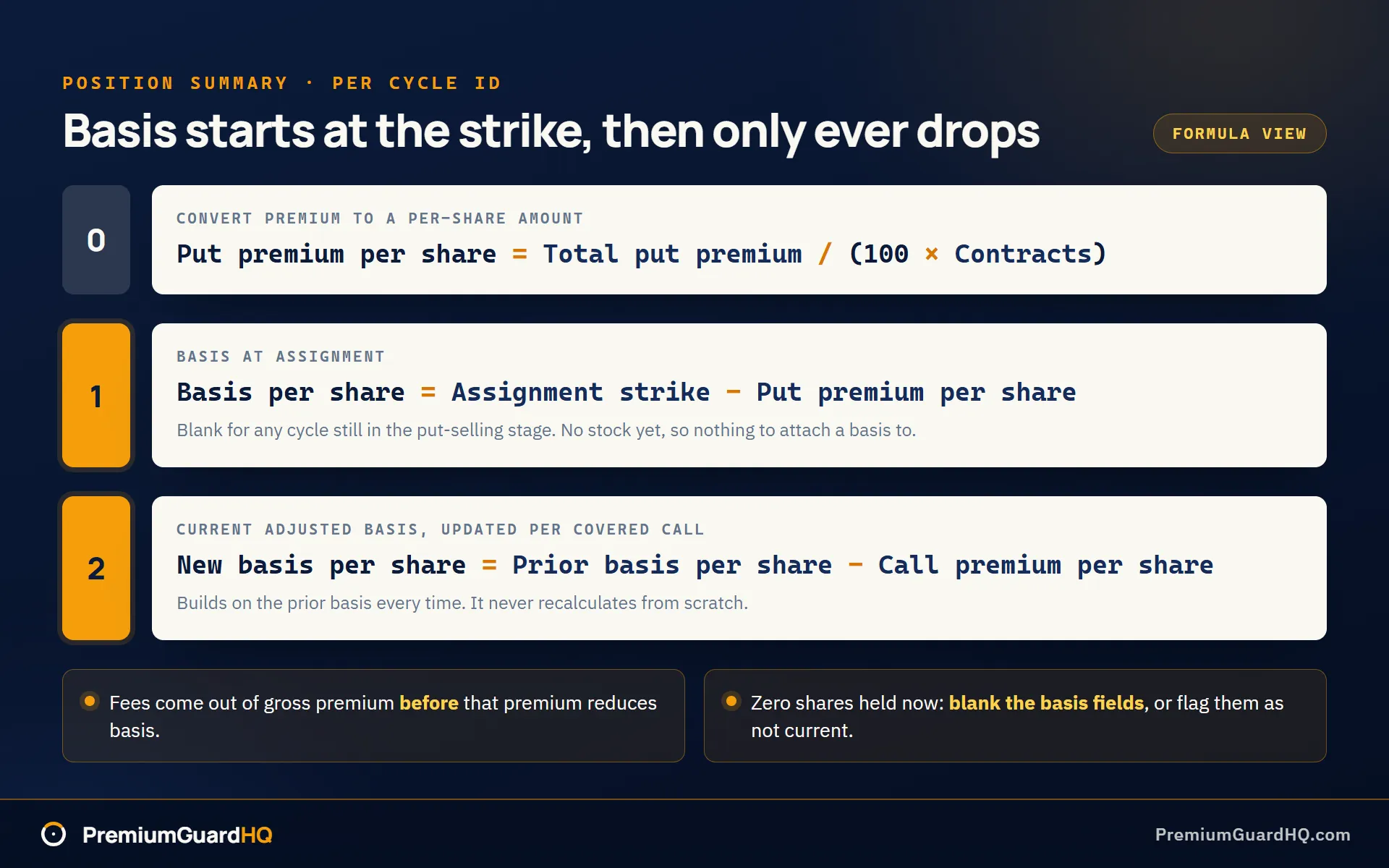
If you track dividends, subtract those per share too. That produces your second number: current adjusted basis. It moves every time you log a new call premium or dividend, and it always builds on the prior basis. It never recalculates from scratch.
One rule matters above the rest: fees always stay in the math. Subtract fees from gross premium before that premium reduces basis. A premium number that ignores fees is a number you cannot trust.
Second rule: if a Cycle ID shows zero shares held now, blank out its basis fields or flag them as not current. A stale basis number next to an empty position is worse than no number.
For any Cycle ID that went through assignment, you should now see two clean numbers: basis at assignment and current adjusted basis. Both update automatically as you log new premiums and fees. The same arithmetic, worked end to end on an assigned put, is laid out in the guide to basis at assignment and break-even through rolls.
Step 4: Separate realized premium from open premium
Your broker screen tends to show one single profit number. That number can mislead you if any part of the cycle is still open. A cycle is one full round of the wheel strategy spreadsheet: sell a put, get assigned stock, then sell a call on it.
Premium is the cash you collect for selling an option. It is not profit the moment it lands in your account. Premium becomes real profit only after the option closes, expires, or gets assigned. Assignment means you are forced to buy or sell the stock because the option was exercised against you. Until then, the cash sits in a position that can still go wrong.
Open the Position summary tab and build two separate totals for every Cycle ID.
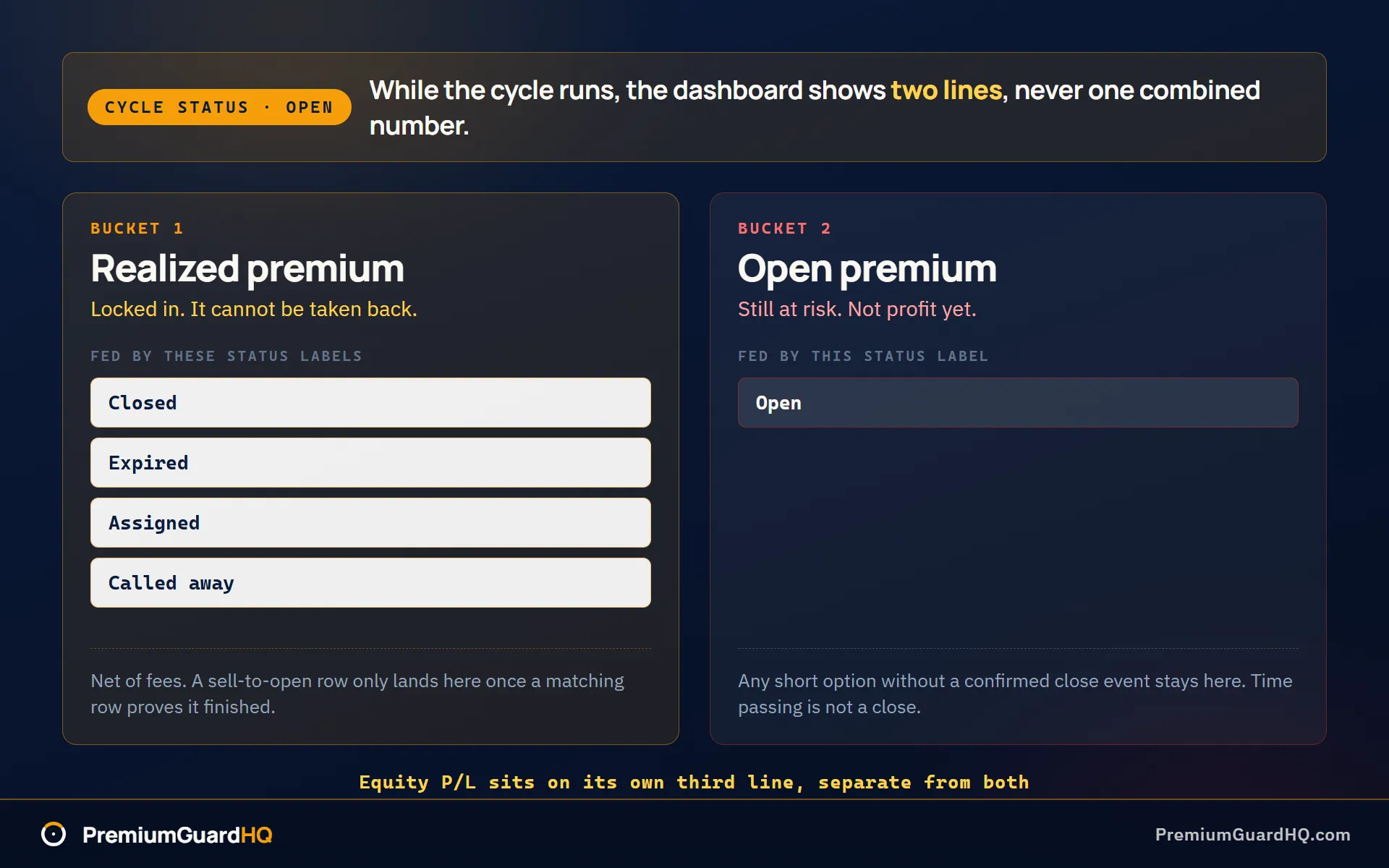
- Realized premium: total premium from events that are closed, expired, or assigned. This money is locked in and cannot be taken back.
- Open premium: total premium from any short option still open now. A short option is one you sold, not bought. This money is still at risk.
To make this work, return to the Trade log and give every option event a Status label: Open, Closed, Expired, Assigned, or Called away. Called away means your stock was sold because a call option you sold was exercised against you.
Here is the rule that keeps you honest. A sell-to-open event is the trade where you first sold the option. That event is not realized until a matching row shows it closed, expired, or got assigned. Without a matching row there is no realized profit, and the event stays in the open premium bucket.
If you built Leg IDs in step 2, use them here as well. A Leg ID tracks one option position from open to close. Add a Close group key so the sheet can pair a sell-to-open row with its matching buy-to-close row inside the same Leg ID and know exactly when that leg finished.
If you skip that pairing, use a simpler backup rule. Treat any option without a confirmed close event as open premium only. Never assume it closed just because time passed.
The Position summary should now show three numbers per cycle:
- Net realized option cash flow: closed and expired premium, with fees included.
- Net open option cash flow: premium from positions that are still live.
- Equity P/L proxy: stock proceeds minus stock cost, shown on its own line and separate from any premium number. P/L means profit and loss.
Here is the display rule, and it is not optional. If Cycle status reads Open, show net income as a split view. Put realized premium on one line and open premium on another. Do not combine them into a single number while the cycle is still running. Combining them is how traders talk themselves into profits that are not real yet.
For any open Cycle ID, you should now have two separate numbers on your dashboard: realized premium and open premium. The sheet will not combine them into one profit figure until the cycle actually closes.
Step 5: Compute return on capital, per cycle and annualized
This step produces the number you built the whole sheet for: return on capital, or ROC. ROC tells you how hard your money worked during one cycle. A cycle is one full round trip of the wheel strategy: sell a put, get the stock, then sell a call on it. This number is one clean figure per Cycle ID that you can check and trust. It is not the fuzzy profit and loss screen from your broker.
Find your capital deployed
First, find capital deployed. This is the cash your broker locked up to secure the opening put in that cycle. A put is an option contract. Selling a put means you promise to buy 100 shares at a set price, called the strike price, if the stock falls that low. Use this formula:
Capital deployed = Strike * 100 * ContractsIf you add more contracts partway through a cycle, decide now and stick with that decision every time. Treat the add as a brand new cycle with its own Cycle ID, or update capital deployed to show the new, larger total. Pick one rule and use it every time so the numbers stay comparable across cycles.
Add up your total cycle return
Next, find total cycle return in dollars. Go to the Position summary tab and add two lines together:
Total return = Net option cash flows + Net stock cash flowsKeep option cash flow and stock cash flow on their own rows before you add them. That lets you see at a glance how much return came from premium, the cash collected for selling options, and how much came from the stock price itself moving.
Calculate cycle ROC
Now calculate cycle ROC:
Cycle ROC = Total return / Capital deployedNext to this number, add two date columns. Cycle start date is the date of the first sell-to-open event on the put that began the cycle. A sell-to-open event is when you first sell the option to start the trade. Cycle end date is the date the stock got called away, meaning sold through a covered call, or the date you sold the stock yourself to exit. Subtract the start date from the end date to get days in cycle.
Annualize the number for fair comparison
A 5% return in 20 days is a much better trade than a 5% return in 200 days, but raw cycle ROC cannot show that difference by itself. Annualized ROC fixes the comparison. It scales every cycle to a common 365-day year, so you can compare cycles side by side no matter how long each one lasted.
Annualized ROC = Cycle ROC * (365 / Days in cycle)Build your dashboard table
Build one table that brings all of this together. Each row is one Cycle ID. Include these columns: Cycle ID, ticker, start date, end date, days in cycle, realized premium, equity profit and loss, total return, cycle ROC, and annualized ROC.
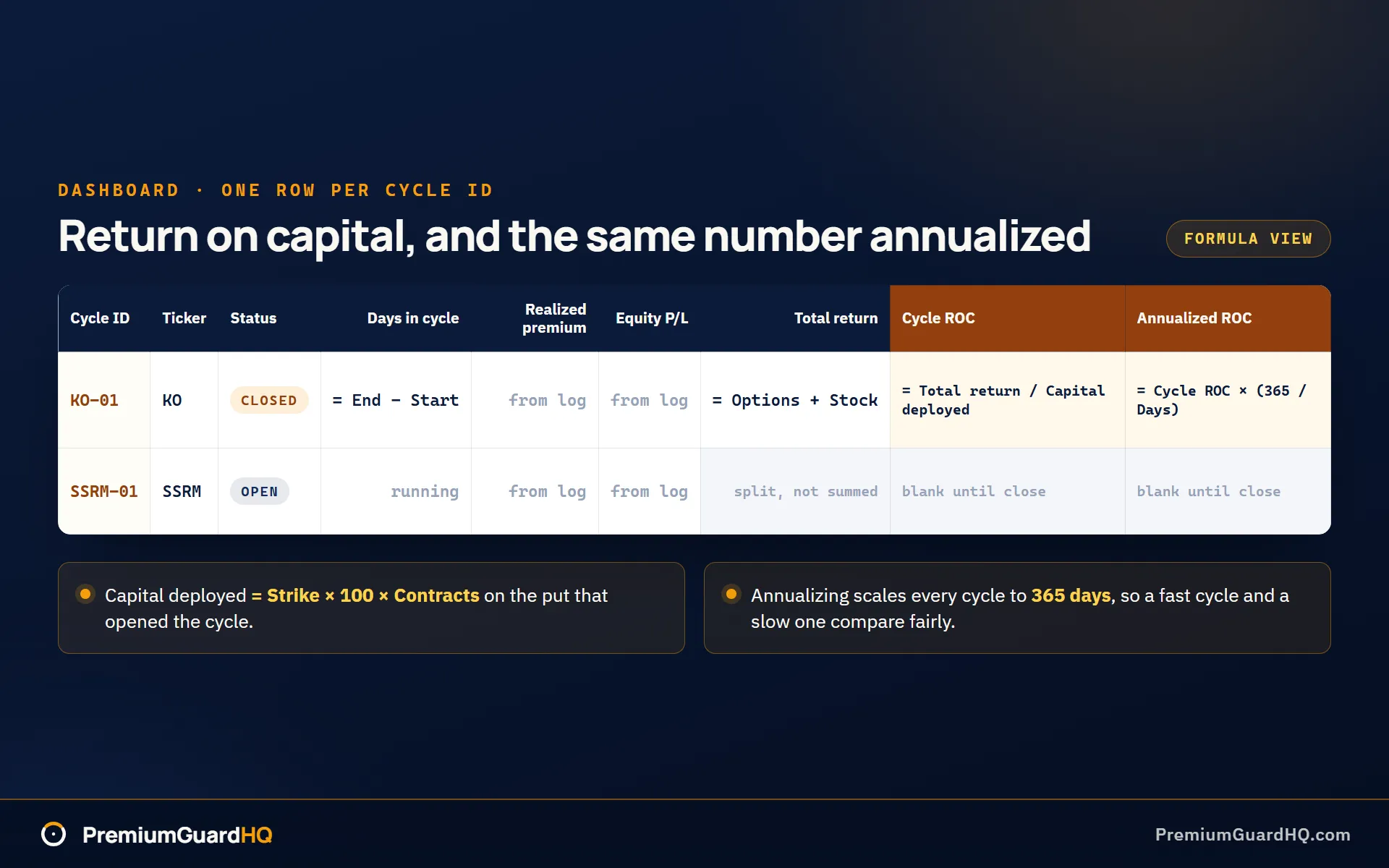
Keep one row per cycle as the default view. You can add a blended portfolio-weighted ROC on top later if you want one combined number. For now, keep it simple. Per-cycle numbers let you catch a weak ticker early, before it quietly drags down the whole account.
For every closed Cycle ID, you should now have one ROC number and one annualized ROC number. Both trace back to real logged cash flows and a capital figure you can defend line by line. If you want to sanity-check a single cycle before you trust the formula, you can check a cycle’s return on capital without building the math yourself.
What you should see when the sheet is working
Run one test before you trust this sheet with real money. Pick a ticker that went through a full cycle, one with at least one roll and one assignment. A roll means closing one option and opening a new one. Assignment means you were forced to buy or sell the stock tied to your option. Then check these six things.
- Filter the Trade log by that Cycle ID. You should see the whole sequence in order, from the first put sold to the last call closed.
- The roll shows up as two rows, and they net together correctly.
- After assignment, your share count jumps by exactly 100 per contract, not 99 or 105.
- Adjusted cost basis drops each time you log a new call premium.
- While the cycle is still open, realized premium and open premium stay on separate lines and never get added together early.
- Once the cycle closes, total return equals option cash flows plus stock cash flows. ROC means return on capital, and it should match that total divided by the capital you declared for the cycle.
If all six checks pass, the formulas are sound. If one fails, stop and fix step 2 or step 3 before you build anything else on top of it.
Here is the honest limit of this approach: the sheet only tells the truth when you tag every Cycle ID by hand, every time. Miss one tag or get lazy during a busy week, and the sheet starts lying to you again, quietly, the same way the broker screen always did.
That is the ceiling this approach runs into. An automated cycle detector removes that ceiling. Instead of you tagging every cycle by hand, it does the tagging on every sync, across every broker you use.
Frequently asked questions
Do I have to track rolls as two separate rows?
Yes. A roll means closing one option and opening a new one at a different date or strike. That buyback costs real money, and the money needs its own line. Squeezing a roll into one row hides the cash you spent to close the old option. Use two rows instead, give both the same Cycle ID to keep them linked, and give both the same Leg ID so you can add them together later. See Step 2 above for the full setup.
Can I auto-import Greeks into Google Sheets for free?
Mostly no. Greeks are the numbers that describe an option’s risk, such as delta, which estimates how much an option’s price moves when the stock moves one dollar. Free spreadsheet tools do not pull live Greeks on their own. Getting real-time Greeks usually means paying for a data feed or linking a broker API. The simple workaround is to write down delta and implied volatility by hand when you open the trade. Treat those two numbers as notes for your own review, not as live risk data.
Why does my broker’s cost basis not match my spreadsheet basis?
Because the two numbers answer different questions. Your broker’s cost basis follows tax rules such as wash sale adjustments and is not aware of which cycle a trade belongs to. A wash sale is a tax rule that changes your reported cost when you sell a loser and soon after buy something similar. Your spreadsheet basis is cycle-based and cash flow-based instead. It moves only when real premium lands in your account, tied to one specific Cycle ID. Neither number is wrong; they serve different purposes. See Step 3 above for the full basis formulas.
Should this spreadsheet also explain the wheel strategy itself?
No, and that is intentional. This guide sticks to the spreadsheet build: columns, IDs, and formulas. The rules behind the wheel strategy itself, such as how to pick strikes or when to roll, belong in a separate guide. Check the pillar article on the wheel strategy for that full breakdown.