

Want to collect cash on stock you already own? Selling a covered call on Schwab makes that possible. You agree to sell 100 shares you hold at a set price, known as the strike price. In options terms, you “sell to open” one call contract against those shares. You receive cash upfront for making that promise. That cash is the premium.
Schwab has two different places to do this. One is the regular Schwab.com website. The other is thinkorswim, Schwab’s advanced trading platform. Following directions for one screen while looking at the other leads to confusion. You could even place a naked call by accident. A naked call is a much riskier trade where you sell a call without owning the stock behind it.
This guide labels every step by platform so you always know which screen we mean. Screen names and menu labels follow Schwab’s own documentation as of September 2026. Schwab changes its platforms from time to time, so confirm the current wording on its support pages before you rely on it.
Before you click anything, prep your order so it does not get rejected halfway through.
Before you start
Get these things ready before you touch a trade ticket. Skipping this step is how people place the wrong trade by accident.
- Pick your platform. Schwab.com’s All-In-One Trade Ticket gives you a simple web screen. Thinkorswim lets active traders right-click straight from the option chain, the list of all available strikes and expiration dates.
- Confirm you’re covered. You need 100 shares for every 1 call contract you sell. Those shares must sit in the same Schwab account where you place the trade. If your shares live in a different account, or you sell them after opening the call, you can end up with a naked call by accident. A naked call is a short call with no stock backing it up, and it carries much bigger risk than a covered call.
- Confirm your options approval. Your account needs Schwab options approval before it will accept the order. Covered calls are low-risk as options go, so they sit at the entry level of most brokers’ approval tiers. Check the level on your own account before you plan a trade, and apply there if you have no options approval yet.
- Know the cost. Schwab charges a per-contract fee on options trades, and small exchange and regulatory fees can be added on top. Check Schwab’s current pricing before you trade so the number on your confirmation screen does not surprise you.
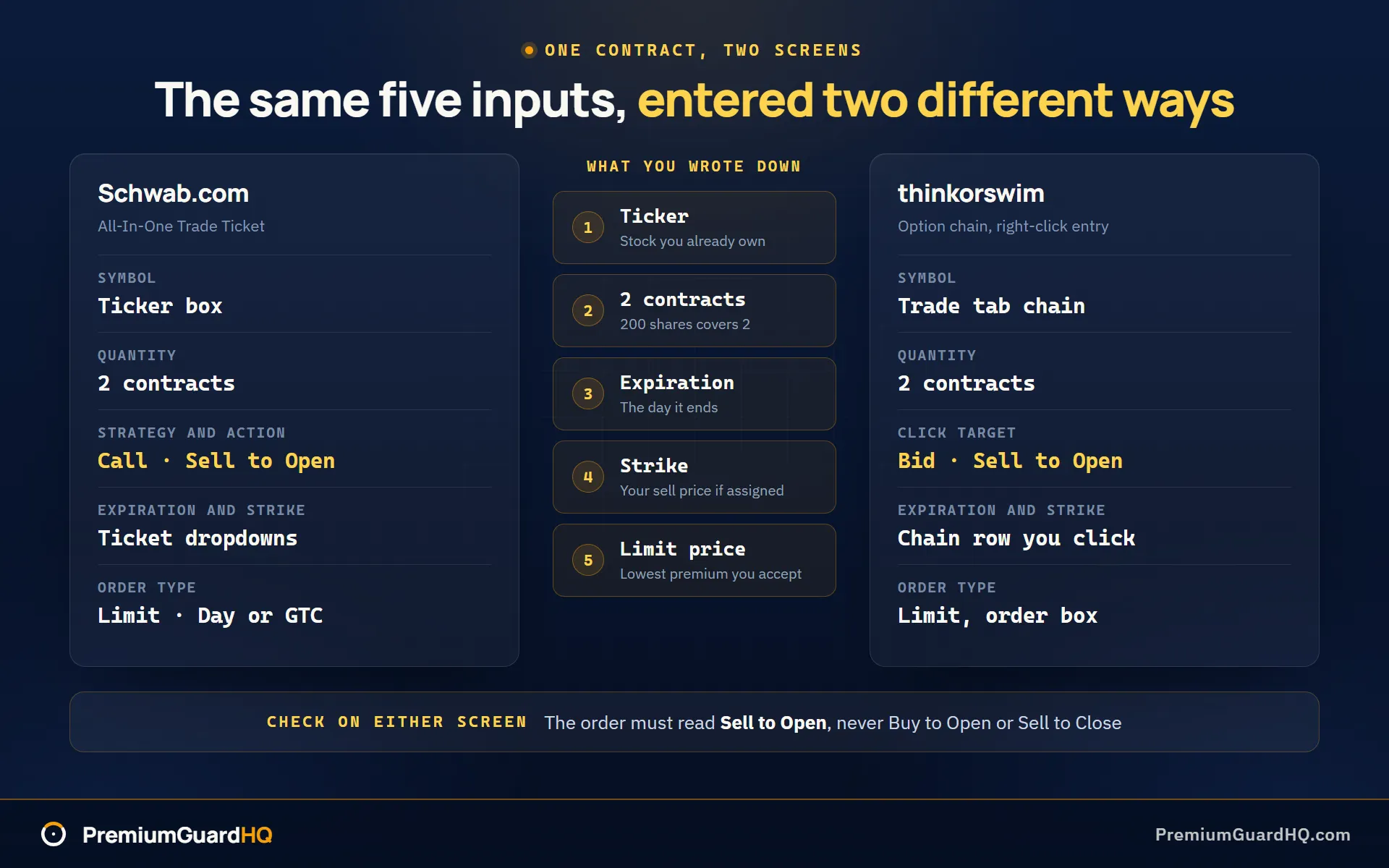
- Have your 5 inputs ready: ticker symbol, number of contracts (1 per 100 shares), expiration date, strike price, and limit price.
- Know the guardrails. A covered call caps how much profit you can make if the stock price jumps up. Your short call, the call you sold, can be assigned at any time before it expires. That means the buyer can force you to sell your shares early. If taxes matter to you, talk to a tax professional about holding periods and wash sale rules before you trade.
Got your five inputs? Good. Let’s place the trade.
Step 1: pick the exact contract you are selling
Before you touch a trade ticket, decide exactly what you’re selling. Write it down first.
One rule drives everything else: one covered call means you sell to open one call contract, backed by 100 shares you already own. “Sell to open” means you are creating a new short call. You are not closing one out.
Count your contracts first. The math is simple once you know your shares:
- 100 shares = 1 contract
- 200 shares = 2 contracts
- 300 shares = 3 contracts, and so on
You don’t have to sell a contract against every share you own. If you only want part of your position open to being called away, sell fewer contracts than your full share count allows.
Next, pick your expiration date. This is the date the contract ends. Two things drive how much cash you collect. One is time left until expiration. The other is implied volatility, a measure of how much the market expects the stock to move. More time and more expected movement both mean more cash in your pocket. Twenty to fifty days until expiration is a range commonly used by covered call sellers. Treat that as a starting point, not a rule.
Then pick your strike price. The strike is the price at which you agree to sell your shares if assigned. Assigned means the buyer exercises their right and your shares get sold at the strike price. Ask yourself two questions:
- At what price would I be happy selling these shares if I get assigned?
- How much cash do I want in exchange for capping my upside at that price?
If your option chain shows delta, you can use it as a rough filter. Delta is a number that roughly tracks the odds your option ends up assigned. A delta somewhere around 0.30 to 0.40 is one range covered call sellers use to target lower assignment odds. Treat this as an optional lens, not a requirement. If the strike and the premium are hard to weigh against each other, you can put the strike and the premium side by side before you commit.
Finally, decide your order intent. You are placing a “sell to open” order. Favor a limit order over a market order. A limit order sets the lowest price you will accept. This protects you from a bad fill, meaning a trade that executes at a worse price than you wanted.
Write down five details now: ticker, expiration date, strike price, contract count, and limit price. You now have one exact contract picked out. Next, you’ll enter it exactly as written on your chosen platform, whether that’s Schwab.com or thinkorswim.
Step 2: place the order on Schwab.com
This step uses Schwab.com, the regular website. If you use the thinkorswim platform instead, skip ahead to that section.
Click the Trade tab. Open the All-In-One Trade Ticket. This is Schwab’s main order form. Type in the ticker symbol for the stock you already own. A ticker symbol is the short code for a stock, like AAPL for Apple. Under Strategy, choose Call. Under Action, choose Sell to Open. This tells Schwab you are opening a new short call, not closing one out. A short call is a promise to sell your shares at a set price if the buyer wants them.
Next, pick the expiration date and strike price you wrote down in Step 1. The expiration date is the day the contract ends. The strike price is the set price at which you agree to sell your shares.
Now fill in the rest of the ticket:
- Quantity: Enter your contract count from Step 1. One contract covers 100 shares, so divide your share count by 100. Never enter more contracts than shares you actually own.
- Order type: Choose Limit, not Market. A limit order sets the lowest price you will accept for selling the call.
- Limit price: Enter your minimum acceptable premium. Premium is the cash payment you receive for selling the call. Use the number you wrote down in Step 1. Some traders start at the midpoint between the bid and ask prices, then adjust from there. Starting at the midpoint does not guarantee your order fills right away.
- Time in force: Choose DAY if you only want the order active for today. Choose GTC if you want it to stay open across multiple days. GTC stands for Good ‘Til Canceled. A GTC order does not run forever, so check the expiry date Schwab shows on the ticket.
Before you submit, stop and check the review screen carefully. This is the moment to catch a mistake before it costs you money. Confirm the ticket says Sell to Open, not Buy or Sell to Close. Check that the account, symbol, strike price, expiration date, and contract count all match what you wrote down in Step 1.
Once everything checks out, place the order.
Schwab Mobile note: Schwab’s mobile app uses a similar flow. Go to Trade, then Options, then Select a strategy. Enter the same contract details from Step 1. Make sure Action is set to Sell to Open for a call.
You’ve now submitted your order to sell to open the call against shares you already own. You should see it listed in Order Status. It will show as open, filled, or working, depending on whether a buyer has matched your limit price yet.
Step 3: place the order in thinkorswim
Thinkorswim is Schwab’s platform built for active traders. It looks and works differently from Schwab.com. If you already placed your order on Schwab.com in Step 2, skip this step.
Path A: sell a call against shares you already own
This is the path most readers want. Open the Trade tab and pull up the option chain for your ticker. An option chain is just a list of every strike price and expiration date you can trade. If the grid looks dense the first time you open it, our walkthrough on what each column on the chain is telling you covers the figures one at a time. Find the expiration and strike price you wrote down in Step 1.
Click the bid price next to that call contract. A bid price is what buyers are currently offering to pay. Clicking it should start building an order marked Sell to Open, not Buy to Open. Check this label carefully. It’s easy to click the wrong price column and end up building a buy order by accident, which is the opposite of what you want.
In the order entry box at the bottom of the screen, confirm the quantity matches the shares you own. One contract covers 100 shares, so you need 100 shares sitting in that same account for every contract you sell. Set your limit price to the number you wrote down in Step 1. A limit price is the lowest price you’re willing to accept for the call.
Path B (optional): one ticket buy-write using “Covered Stock”
Skip this path if you already own your shares. This path is only for readers who want to buy the stock and sell the call in one single order, instead of two separate trades. This combined trade is sometimes called a buy-write.
Thinkorswim has a built-in ticket for exactly this. Right-click the bid or ask price on the option you want to sell. Choose BUY, then choose Covered Stock from the menu. This builds one combined order. In plain language, this single ticket buys 100 shares for every contract, and sells 1 call against those same shares, all at once. Fill in your strike, expiration, and limit price from Step 1 just like before.
Before you send either order
- Confirm the account selected is the account that holds, or will hold, your shares. Thinkorswim can show several accounts at once, and it’s easy to pick the wrong one.
- Check the order direction reads Sell to Open for the call, not Buy to Open.
Once both checks pass, send the order. Check the Order tab or Monitor tab to confirm it shows as working or filled. A working order means it’s still waiting to be matched with a buyer. A filled order means the trade is done. You now have a short call position open in thinkorswim, covered by shares sitting in that same account.
Step 4: confirm the position is covered
Don’t just trust that the order went through. Check it yourself.
Check the order first. Find the order you placed and confirm it says Filled. If it still says Working, the trade has not happened yet. Wait until it fills. Once it does, check the fill details: how many contracts, the fill price, and the time. These should match what you planned in Step 1.
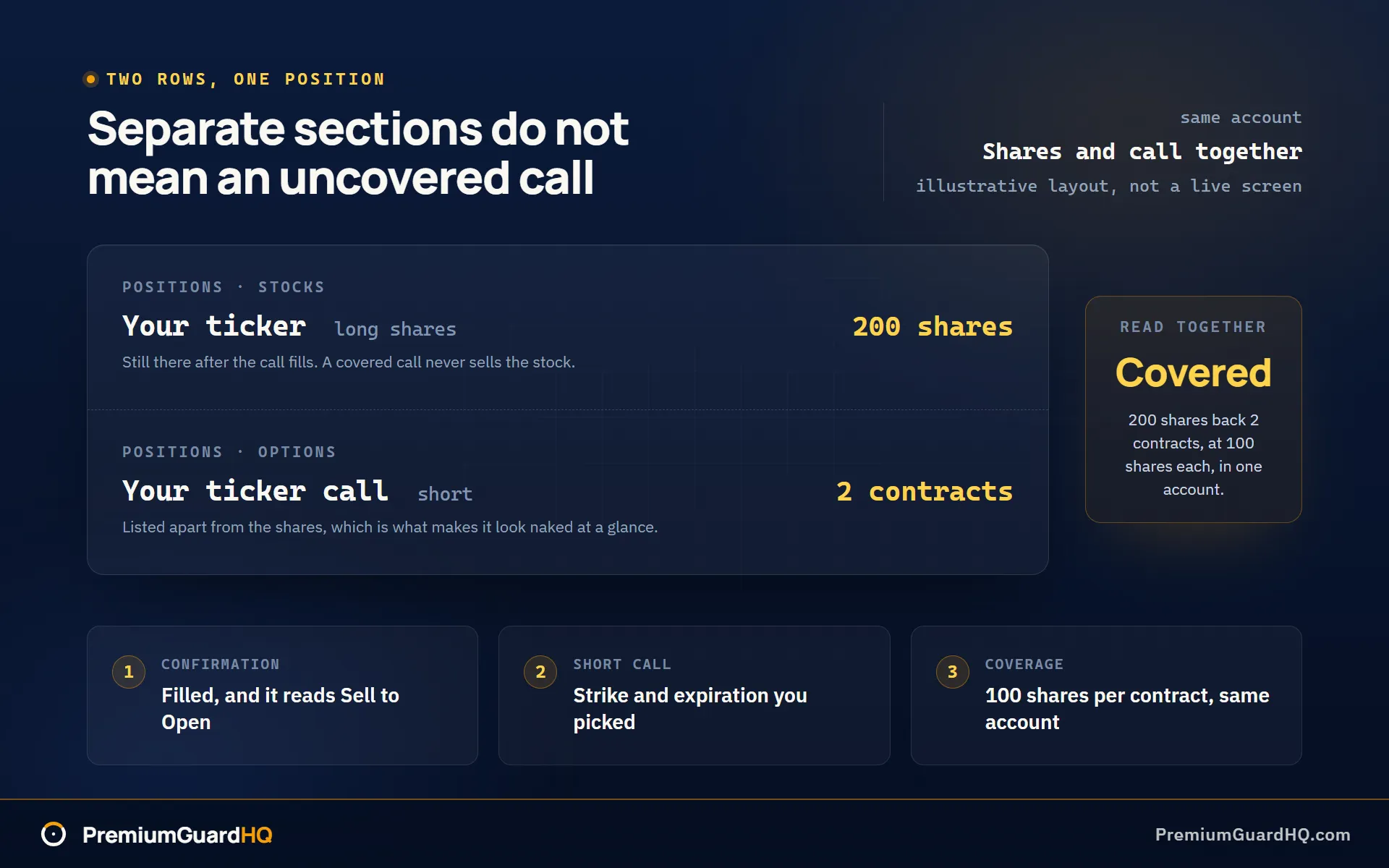
Confirm the position is open. Go to your Positions page. You should see a short call on your ticker. A short call is a promise to sell 100 shares at a set price if the buyer asks you to. Check that it shows the right strike price, the right expiration date, and the right number of contracts. You should also still see your shares sitting in the same account. Both need to be there. A short call with no shares behind it is called a naked call. That is not what you meant to build.
Check the cash. The premium is the money you got paid for selling the call. It normally shows up in your cash balance after the trade fills. Timing can vary a little depending on your account type and how fast Schwab processes it, so don’t worry if it takes a bit to post. Schwab also takes a per-contract fee, plus small exchange fees, out of that premium. Your trade confirmation shows the exact final numbers. Trust that over any running balance you eyeball on a dashboard.
Do a risk check before you touch anything else. Do not sell the shares underneath this call. If you did, your short call would suddenly have no stock backing it up, which is risky. If you want to sell those shares later, close the short call first.
Know the assignment risk. Assignment means the buyer of your call exercises their right to buy your shares. This can happen any day before expiration, not just on the expiration date, because the buyer decides when to exercise. Two things raise the odds of it happening early: the stock price rising above your strike, and the stock nearing an ex-dividend date. Watch for those two conditions on your own positions.
If your screen looks wrong, check the source of truth. Some apps list options and shares as separate rows in separate sections. This can make a fully covered position look naked at a glance. It is not naked. What matters is what you actually hold in the account, not how the screen groups it. If something looks off, open the trade confirmation and the positions detail for that contract. Confirm the order type says Sell to Open and the contract count matches your share count.
You should now be able to point to three things: a filled sell-to-open trade confirmation, a short call position with the strike and expiration you intended, and the matching share position that covers it, all in the same Schwab account.
What you should see when it worked
After your trade fills, check these four places.
Orders or History: a filled order marked Sell to Open, on your ticker, with your strike and expiration. It should say Filled, not Working. Working means the order hasn’t gone through yet.
Positions: your stock shares are still there. A short call now sits next to them on the same ticker. A short call means you sold a call option instead of buying one. Its contract count should match your shares at 1 contract per 100 shares.
Cash activity: your premium shows up as cash. Premium is the money you collected for selling the call. It posts on Schwab’s normal timing, covered in step 4.
If you get assigned later: your share count drops by 100 per contract assigned, and the short call disappears from Positions. Assignment means the buyer used their right to purchase your shares at the strike price. Timing varies, so don’t expect it on a fixed schedule.
One optional step: PremiumGuardHQ uses a read-only Schwab connection, which means it can view your account but never place trades. It auto-detects covered call cycles like this one and separates your premium profit from stock price swings, so you can see your actual cost basis.
Frequently asked questions
What options approval do I need at Schwab to sell covered calls?
Covered calls sit at the entry level of most brokers’ options approval tiers, including Schwab’s, because the shares you already own are the collateral. You still need to actually own 100 shares per contract, and they need to sit in the same account where you place the trade. Check the approval level listed on your own account before you plan a trade, and request an upgrade there if you need one.
Why was my covered call order rejected on Schwab?
Most rejections come down to a handful of mechanical problems. Check these first:
- You do not own 100 full shares per contract in that specific account.
- You picked the wrong account in the trade ticket, common if you hold several Schwab accounts.
- Your order action was not set to Sell to Open. Sell to Open means you are creating a new short call, not closing an old one.
- An existing open order, or a corporate action like a stock split, changed how many shares were available.
Read the rejection message before you do anything else. It usually points to the exact problem. Then cross-check your share count against your contract count before you resubmit.
Why did Schwab charge more than the per-contract fee I expected?
The rate Schwab posts is per contract and applies to each trade, not to the round trip. Opening the call is one charge, and closing it later is a second charge. That is two per-contract fees for one full cycle, not one. Small exchange and regulatory fees can also get added on top, and a service charge can apply if a Schwab representative placed the order for you instead of you doing it online. Always check your trade confirmation. It shows the exact, final numbers, not an estimate.
How is selling covered calls on Schwab different from another broker?
The mechanics don’t change much between brokers. You still pick a strike, an expiration, and sell to open a call against shares you own. The differences show up in per-contract fees, how the trade ticket is laid out, and whether the platform leans toward a simple web ticket or a more advanced trading screen like thinkorswim. Our rundown of how the major options brokers compare on approval levels and fees covers where those differences actually matter, and current fee schedules are worth checking directly on each broker’s site because pricing changes over time.
If you run covered calls across more than one broker, PremiumGuardHQ connects directly to Schwab in read-only mode, and CSV import covers accounts without a direct connection.